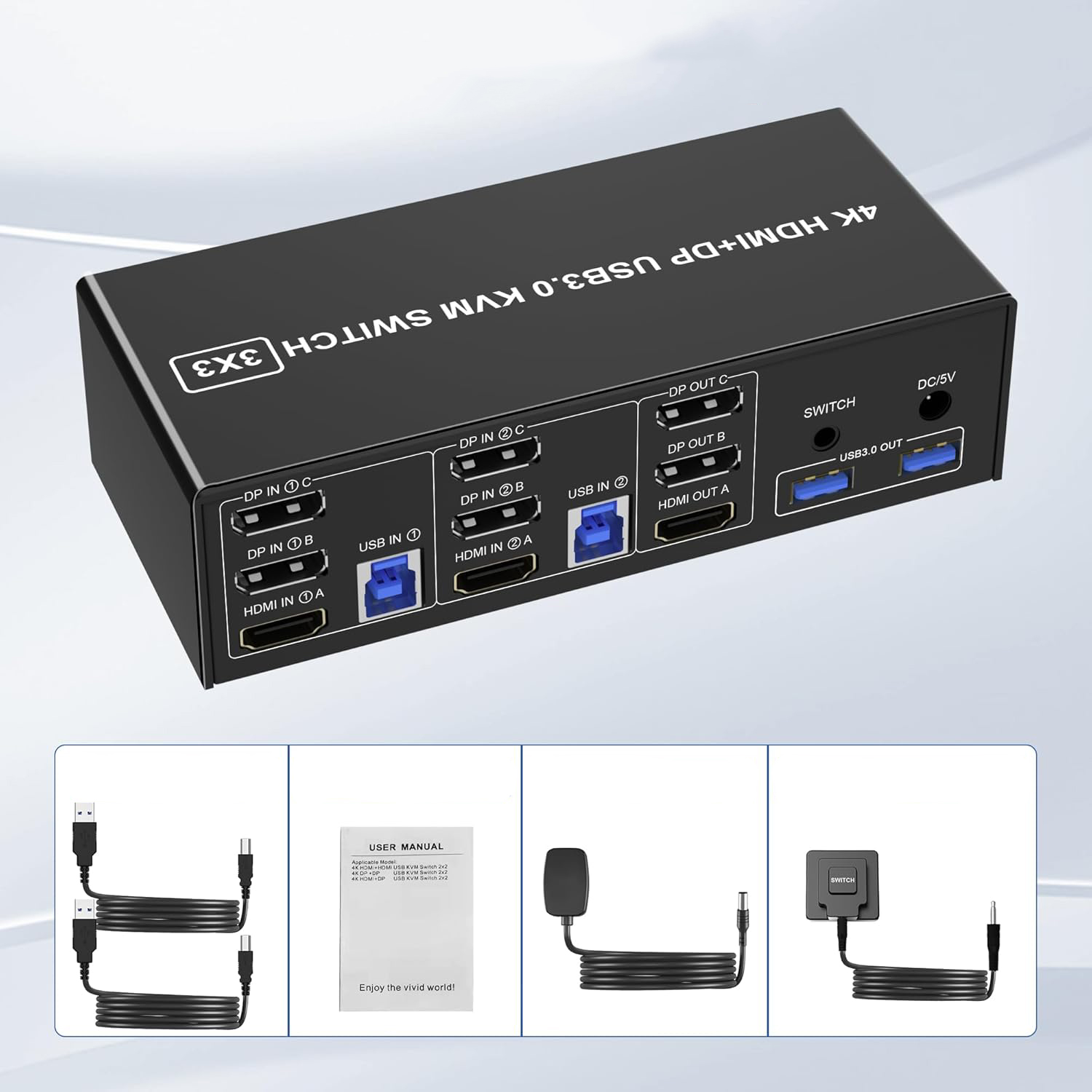
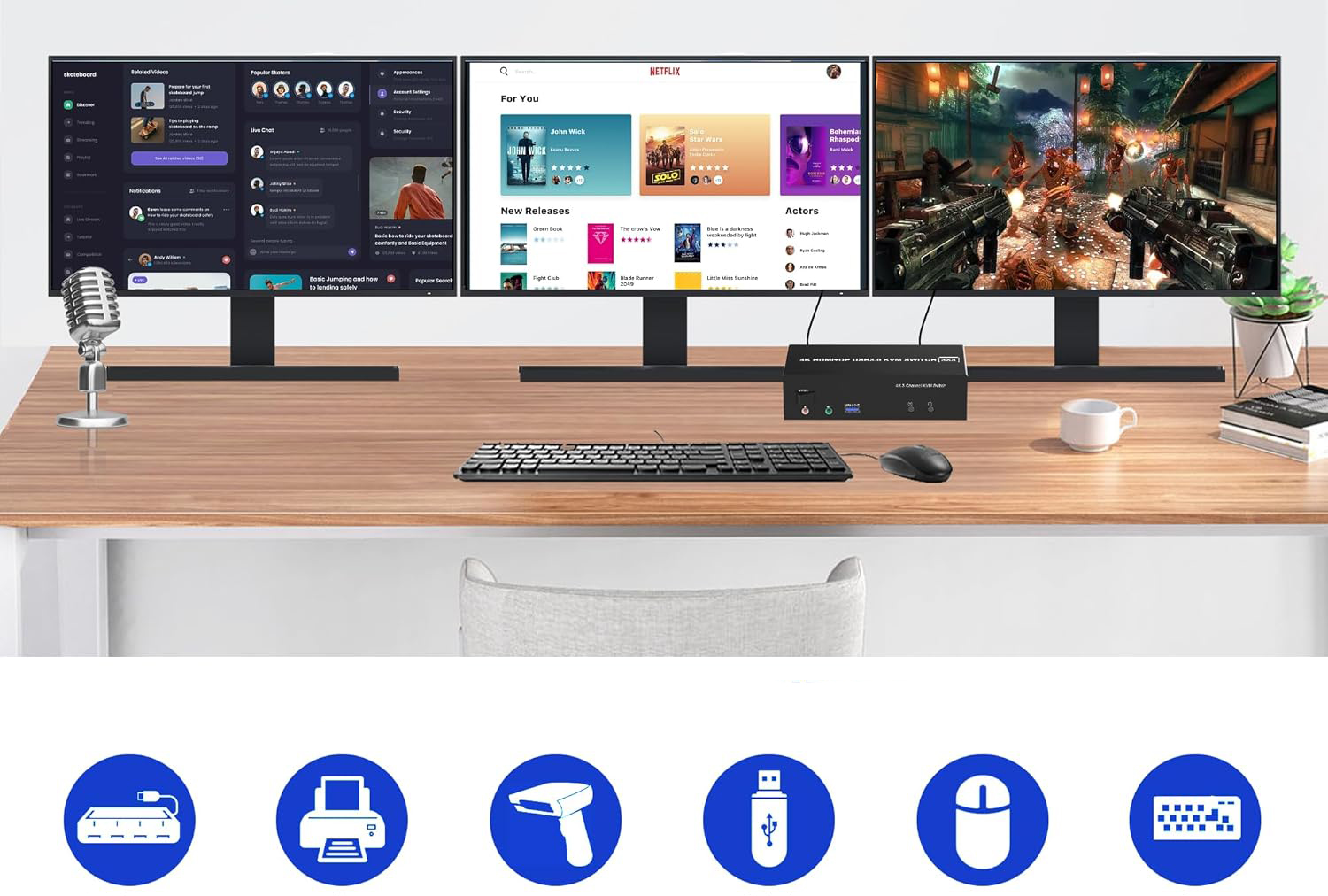
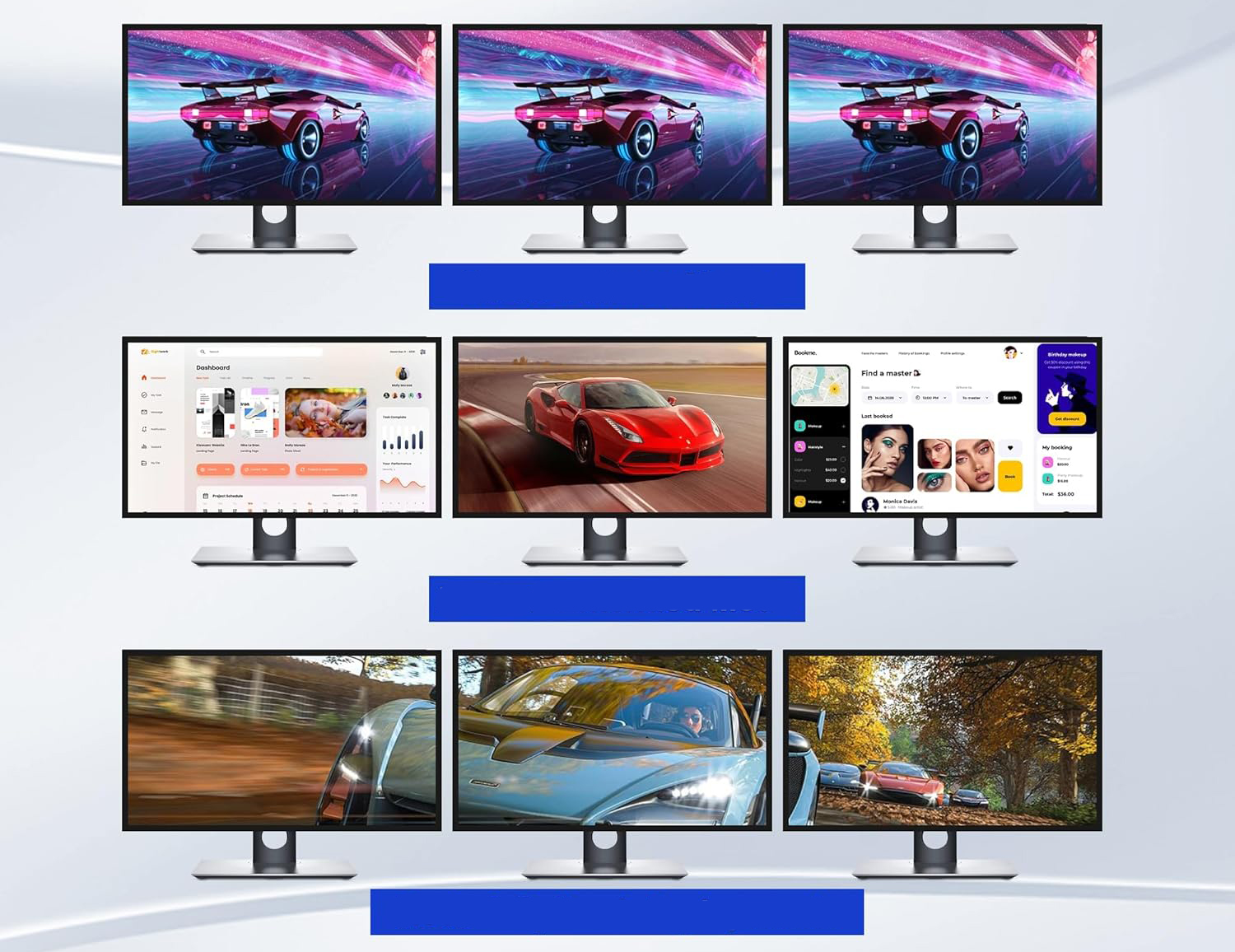
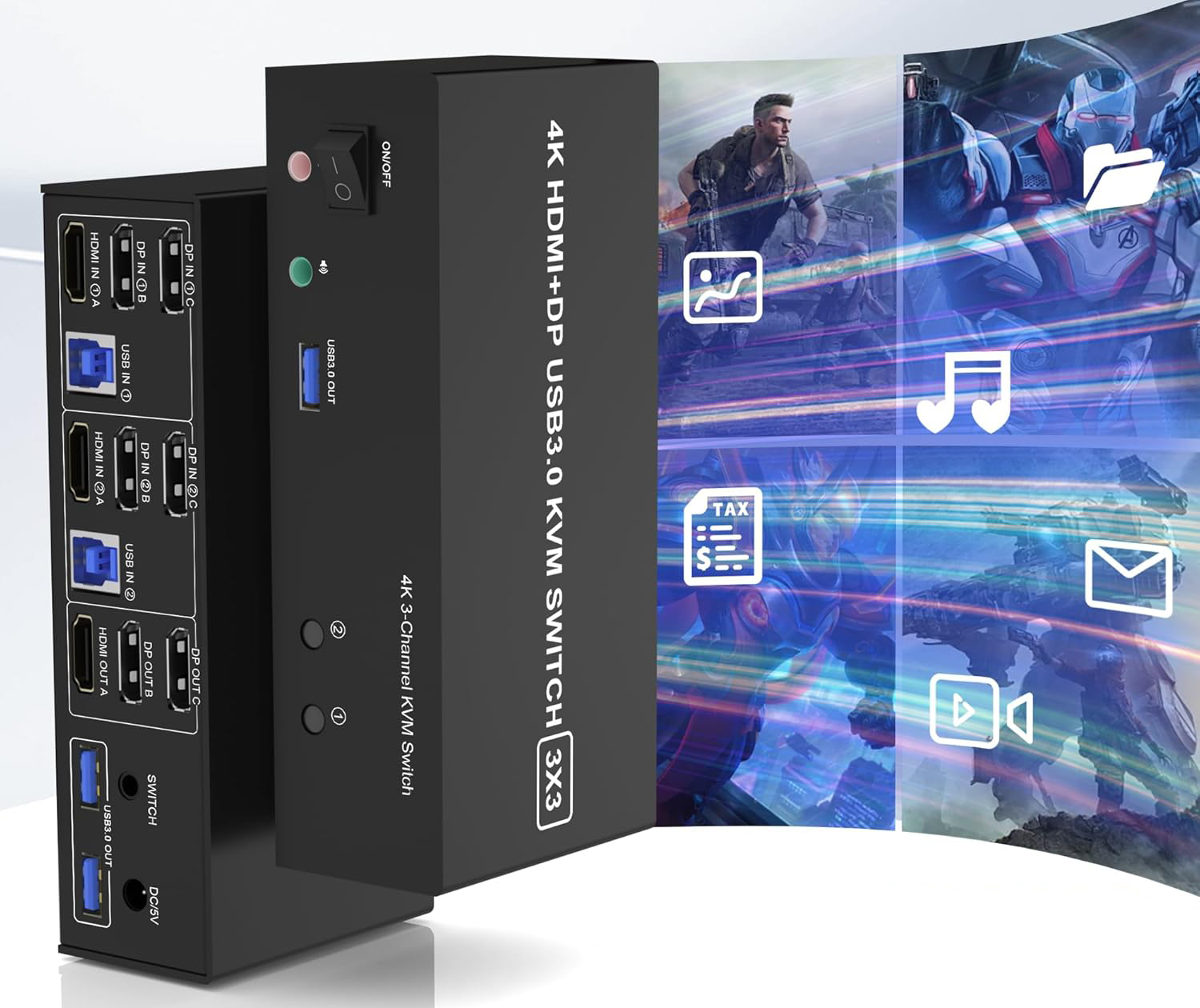
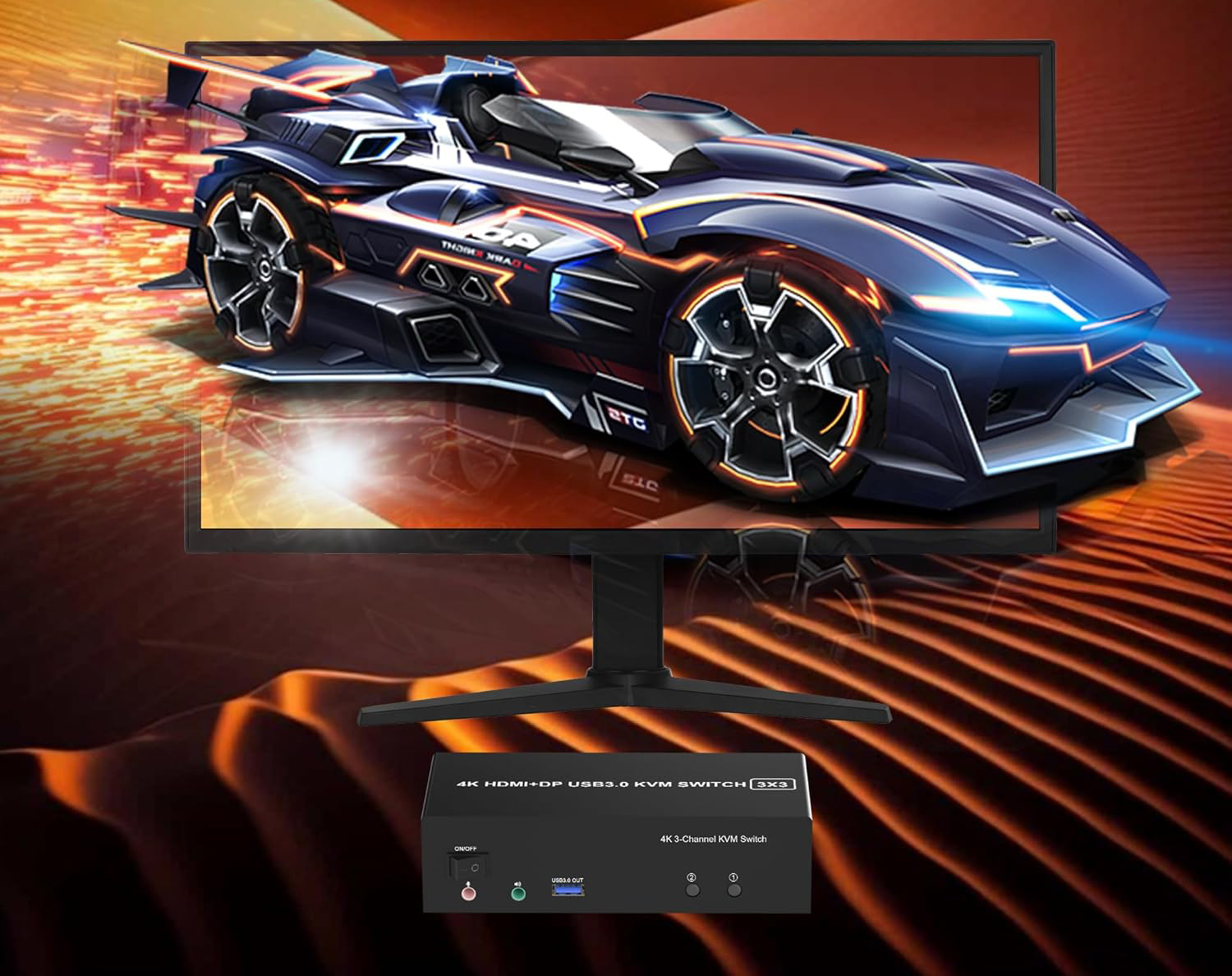
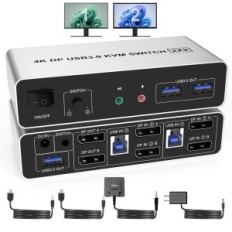
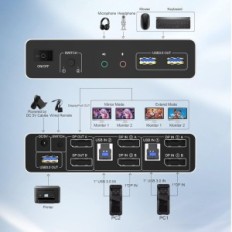
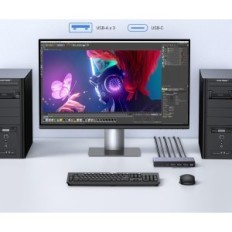
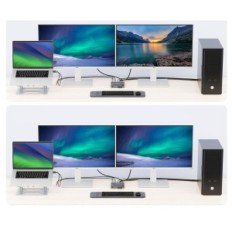
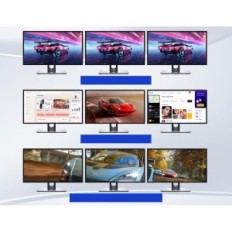
Switch KVM HDMI + 2 DisplayPort for 3 monitors, 2 computers: This KVM switch allows you to control two computers with a single keyboard set, mice and three monitors, which makes your workplace neat and effective. It is also an excellent choice for remotely working people. The ability to divide three monitors into two computers is only available when the computer supports display on multiple screens.
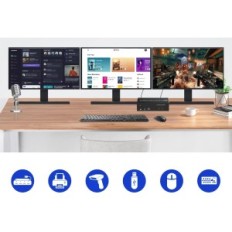
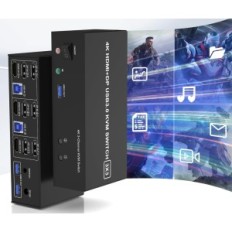
3 USB 3.0 ports and audio and microphone output: KVM switch with three monitors has 3 USB 3.0 ports for keyboard sharing, mice, printer, scanner and other USB devices. Supports ultra-fast data transfer USB 3.0 to 5 Gbps, Compatible back with USB 2.0 devices /1.1. Improved design hides sloppy cables on the back, leaving one USB 3.0 port on the front panel for entering pendrives. The unique design makes the desk more neat and let me say goodbye to tangled cables.
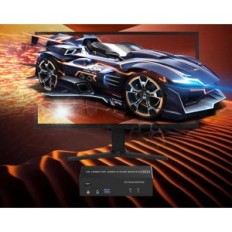
KVM with support for three monitors and a resolution of 4K 60Hz: Our KVM switch supports the maximum resolution to 4K @ 60Hz, as well as 3D and 1080p @ 60Hz or lower resolutions (compatible backwards). Supports separate audio and microphone outputs. NOTE: Only when both the computer's graphics card and the monitor support 4K @ 60Hz, you will get this effect, so if you want to get the maximum resolution, you must check your devices.
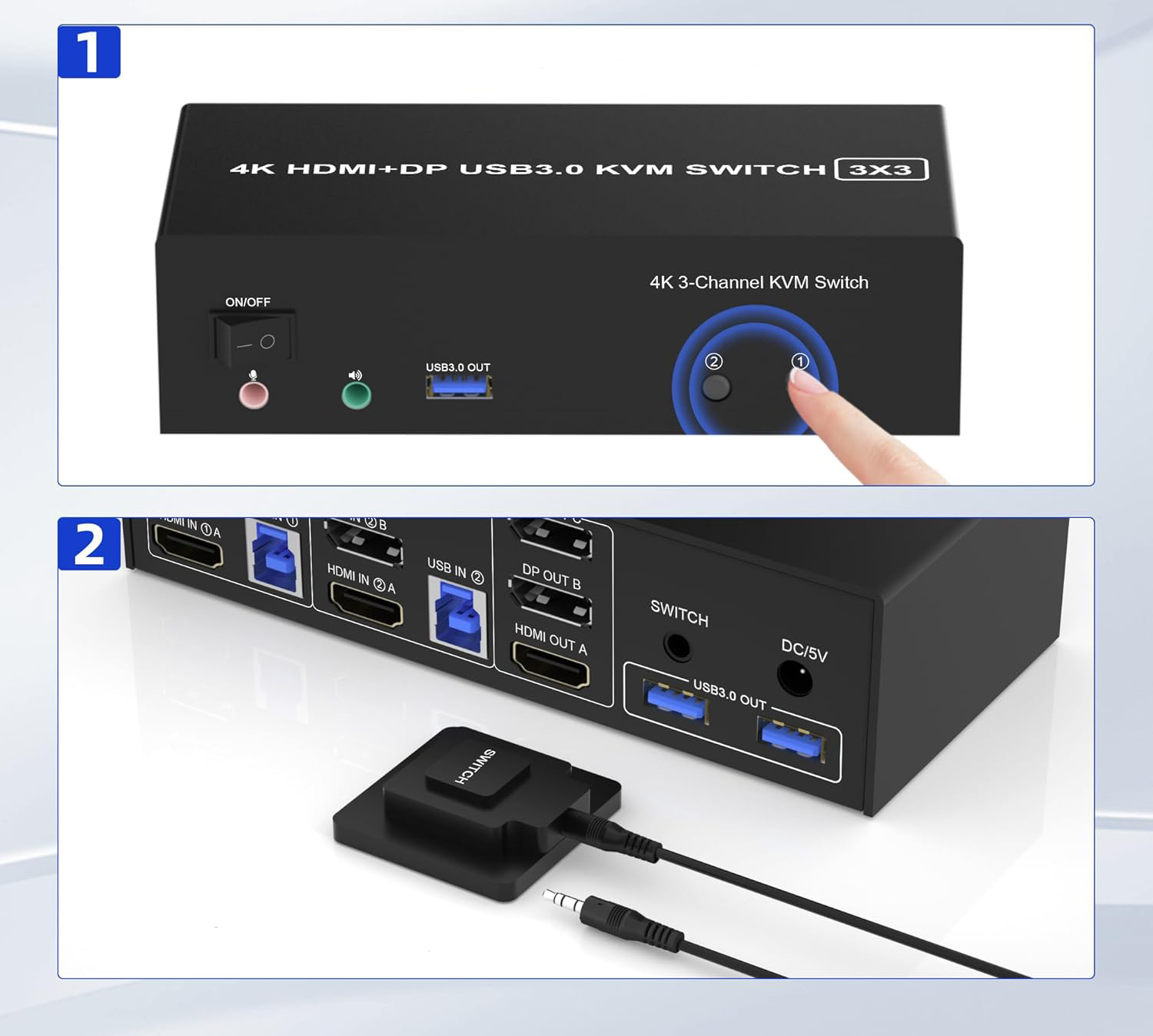
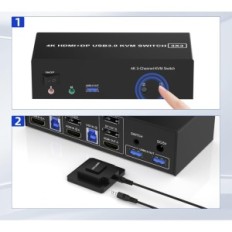
Convenient switching modes and wide compatibility: 1. Switching with the button on the front panel; 2. Wired button for remote switching. Compatible with various computer systems, such as Windows, Linux, Mac, Unix, Ubuntu, Raspberry and most other main operating systems. It also supports HDMI / DP devices without USB input, such as DVR, NVR etc. LEDs indicate an active computer.
Contents of the kit: 1x HDMI + 2 DisplayPort KVM with three monitors, 2x USB 3.0 cables, 1x power adapter, 1x wired switching button, 1x Operating instructions.
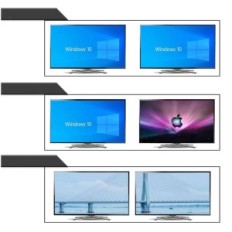
Important: After connecting computers and monitors via KVM, set the screen output mode on your computer (press Windows + P) and select the output mode in the window displayed on the screen. (Extended, mirror or combined display modes depend on the computer's graphics card).

 Français
 Polski
 English
 Čeština
 Dansk
Dansk Deutsch
 ελληνικά
 Español
 Eesti keel
 Suomi
Suomi Hrvatski
 Magyar
 Italiano
 Nederlands
 Bokmål
 Português PT
 Svenska
 Slovenčina
 Slovenščina
 Lietuvių kalba
 Latviešu valoda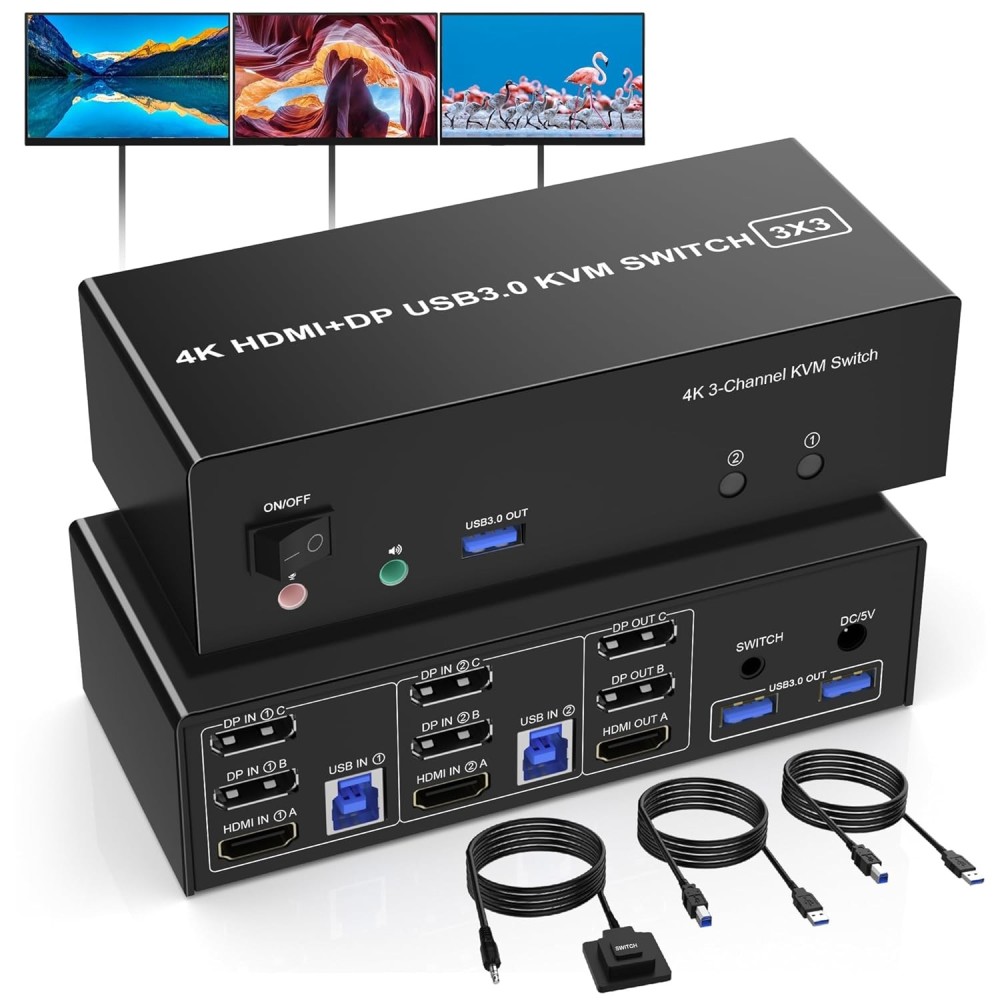


 Secure payment
 Easy going back
 Fast delivery